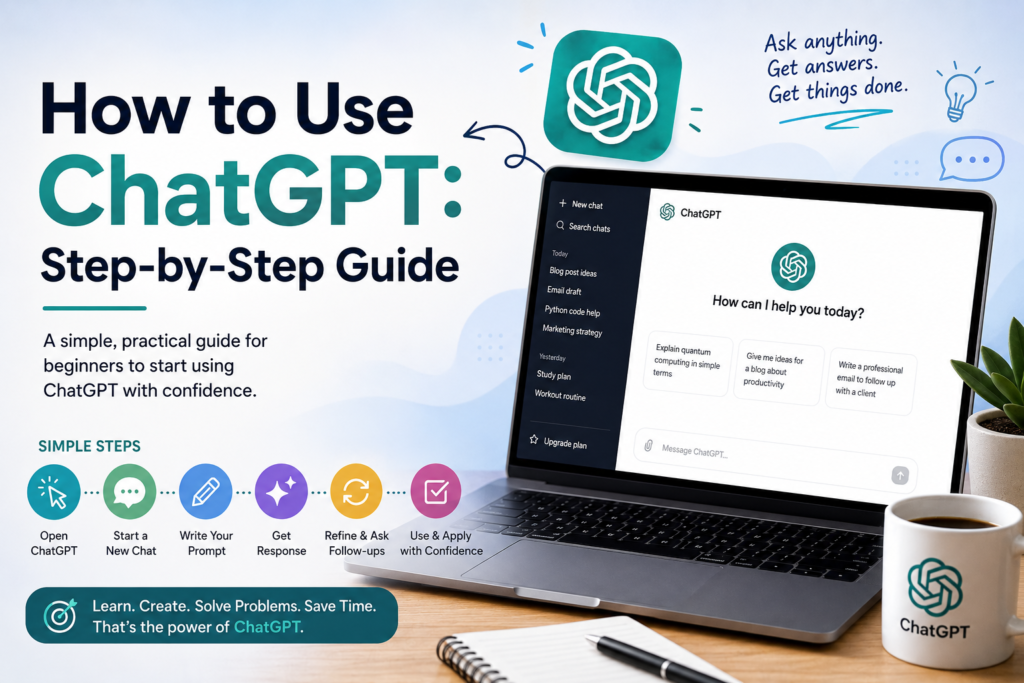
How to Use ChatGPT: A Step-by-Step Guide for Beginners
Artificial intelligence has quickly become part of everyday life, and one of the easiest ways to start exploring AI is with ChatGPT.
Whether you want to write an email, learn a new skill, brainstorm business ideas, analyze a document, write code, research a topic, or simply get help organizing your thoughts, ChatGPT can act as a versatile AI assistant.
But if you’ve never used it before, the experience can feel confusing at first. What should you type? How detailed should your instructions be? Should you start a new conversation for every question? How do you know whether an answer is accurate?
This guide walks you through how to use ChatGPT step by step, from opening your first conversation to creating better prompts and using more advanced features.
Quick answer: Using ChatGPT is as simple as opening ChatGPT, entering a question or instruction in the message box, and sending it. The real skill comes from learning how to give useful context, refine the response, verify important information, and use the right tools for the task.
Table of Contents
- What Is ChatGPT?
- What Can You Use ChatGPT For?
- Step 1: Open ChatGPT
- Step 2: Start a New Chat
- Step 3: Write Your First Prompt
- Step 4: Read and Evaluate the Response
- Step 5: Ask Follow-Up Questions
- Step 6: Improve the Response
- Step 7: Start a New Conversation When Needed
- Step 8: Use ChatGPT Search
- Step 9: Upload Files and Images
- Step 10: Use Voice Conversations
- Step 11: Generate Images
- Step 12: Analyze Data
- Step 13: Explore GPTs
- Step 14: Use ChatGPT for Writing
- Step 15: Use ChatGPT for Learning
- Step 16: Use ChatGPT for Work
- Step 17: Use ChatGPT for Coding
- How to Write Better Prompts
- Beginner ChatGPT Prompt Formula
- 30 Useful ChatGPT Prompts
- Common ChatGPT Mistakes
- How to Get Better Answers
- How to Check ChatGPT’s Accuracy
- Privacy and Sensitive Information
- ChatGPT Limitations
- Beginner Workflow
- Frequently Asked Questions
- Final Thoughts
What Is ChatGPT?
ChatGPT is an AI assistant developed by OpenAI.
You interact with it through natural language, meaning you don’t need to know programming or special commands to use it. You can simply describe what you want in ordinary language.
ChatGPT can help with tasks such as answering questions, explaining concepts, drafting and rewriting text, brainstorming, translation, coding, analyzing files and images, and more. Depending on your plan, settings, and available features, it can also use tools such as web search, image generation, data analysis, voice, and other capabilities.
You can access ChatGPT through the web at chatgpt.com, as well as through supported mobile applications.
What Can You Use ChatGPT For?
Before learning how to use ChatGPT, it helps to understand what you can actually ask it to do.
Here are some popular use cases.
Writing
You can ask ChatGPT to:
- Write blog posts
- Draft emails
- Rewrite paragraphs
- Improve grammar
- Create outlines
- Generate headlines
- Summarize documents
- Adapt writing for different audiences
Learning
You can use it as a learning assistant to:
- Explain difficult concepts
- Create quizzes
- Generate practice questions
- Build study plans
- Explain mistakes
- Provide examples
- Teach subjects step by step
Work
ChatGPT can assist with:
- Brainstorming
- Reports
- Presentations
- Meeting summaries
- Project planning
- Research
- Documentation
- Business writing
Coding
You can ask ChatGPT to:
- Explain code
- Generate code
- Debug errors
- Translate code between programming languages
- Create scripts
- Explain programming concepts
Research
Depending on the tools available in your ChatGPT experience, you can use it to:
- Explore a topic
- Search the web
- Compare information
- Summarize sources
- Organize research
- Generate research questions
Creative projects
ChatGPT can help with:
- Story ideas
- Scripts
- Names
- Slogans
- Marketing concepts
- Image prompts
- Creative brainstorming
The important thing is that you don’t have to memorize a specific command for each task. You can describe the result you want.
Step 1: Open ChatGPT
The first step is simply to open ChatGPT.
Go to ChatGPT.
OpenAI currently allows ChatGPT to be tried without creating an account in supported regions, although logging in or creating an account provides additional functionality such as saving conversations. Availability can vary by region.
If you’re using a phone or tablet, you can also use the supported ChatGPT mobile applications.
Step 2: Start a New Chat
Once ChatGPT is open, you’ll see a conversation interface with a message box.
If you already have another conversation open and want to start a completely different topic, select New Chat.
Starting a new conversation is useful when your new task has nothing to do with the previous conversation.
For example, imagine your current conversation is about:
“Planning a holiday.”
You probably don’t want to continue that same conversation when you suddenly want to ask:
“Help me debug this Python program.”
Starting a new chat gives you a cleaner context.
OpenAI’s current interface uses New Chat to begin a fresh conversation.
Step 3: Write Your First Prompt
The instruction you send to ChatGPT is called a prompt.
Your first prompt can be as simple as a question.
For example:
What is artificial intelligence?
Or:
Explain artificial intelligence in simple terms.
Or:
Give me five examples of how artificial intelligence is used in everyday life.
You don’t need to use complicated language.
ChatGPT is designed to understand natural-language instructions.
Step 4: Be Specific About What You Want
Although a simple question can work, you’ll often get better results when you provide additional information.
Compare these two prompts.
Basic prompt
Write a blog post about exercise.
Detailed prompt
Write a 1,500-word beginner-friendly blog post about the benefits of regular exercise. The audience is adults who are new to fitness. Use a conversational tone, include practical examples, and finish with five actionable tips.
The second prompt gives ChatGPT considerably more information.
It tells the AI:
- The task
- The topic
- The approximate length
- The audience
- The tone
- The desired structure
- The expected conclusion
You don’t have to include all of these details every time, but the principle is simple:
The clearer your instructions, the easier it is for ChatGPT to understand what you want.
Step 5: Send Your Prompt
Once you’ve written your instruction, send it.
ChatGPT will generate a response.
For example:
You: Explain compound interest to a beginner.
ChatGPT might respond with an explanation, an example, and perhaps a calculation.
You can then decide what to do next.
You don’t have to accept the first answer as the final answer.
This is one of the biggest differences between using ChatGPT effectively and simply treating it like a search box.
Step 6: Ask Follow-Up Questions
One of ChatGPT’s most useful features is its ability to maintain conversational context within a chat.
Suppose you ask:
Explain inflation in simple terms.
After receiving the response, you could ask:
Give me a real-world example.
Then:
Explain that example as if I’m 12 years old.
Then:
Give me three questions to test whether I understand it.
You don’t necessarily need to repeat the original question each time.
OpenAI describes ChatGPT as being able to follow previous turns in a conversation and adapt its responses to context.
Step 7: Tell ChatGPT How to Improve the Response
Your first response doesn’t have to be perfect.
Instead, treat the conversation as an editing process.
You can say:
Make it shorter.
Make it more professional.
Explain it more simply.
Add three examples.
Remove the jargon.
Make the introduction more interesting.
Turn this into a table.
Rewrite this for teenagers.
Give me a more persuasive version.
Make the tone friendly but professional.
This iterative approach is one of the easiest ways to get significantly better results.
Step 8: Start a New Conversation When Appropriate
Although continuing a conversation is useful, sometimes you should start fresh.
Start a new chat when:
- You’re changing to an unrelated topic.
- The conversation has become extremely long.
- Previous instructions are interfering with the new task.
- You want a clean starting point.
- You want to approach the problem from scratch.
For example, keep your blog-writing project in one conversation and your coding project in another.
This makes it easier to keep the context organized.
Step 9: Use ChatGPT Search
ChatGPT can also search the web when web search is available.
This is particularly useful when you’re asking about information that can change frequently.
Examples include:
- Current news
- Today’s events
- Current product information
- Recent developments
- Current prices
- Recent company announcements
- Up-to-date research
OpenAI’s current ChatGPT Search documentation says you can start a search through the tools menu and select Search, and ChatGPT can also automatically search when a question would benefit from web information.
For example, instead of asking:
Who won the football match?
you could ask:
Who won today’s Arsenal match?
The word today makes freshness important.
For current information, search-enabled ChatGPT is much more appropriate than assuming an AI model’s underlying knowledge is automatically up to date.
Step 10: Upload Files and Images
Depending on your plan and available features, you can upload files or images to ChatGPT and ask it to work with their contents.
OpenAI says ChatGPT can work with files such as PDFs, presentations, and text documents, and can also analyze images, diagrams, screenshots, and charts.
For example, you could upload a report and ask:
Summarize this document in 10 bullet points.
Or:
Identify the main conclusions in this report.
Or:
Turn this document into a presentation outline.
For an image, you could ask:
What information is shown in this chart?
Or:
Describe the objects in this image.
This turns ChatGPT from a text-only assistant into a tool for working with different types of information.
Step 11: Use ChatGPT’s File Library
ChatGPT also has a Library for saved files.
OpenAI says uploaded and created files can be saved in the Library, allowing users to find and reuse them later. The Library is available on supported plans and in the UK.
You can add a saved file to a conversation through the attachment/add menu and select Add from library.
This can be particularly useful if you regularly work with:
- Reports
- Spreadsheets
- PDFs
- Presentations
- Images
- Other project files
Instead of repeatedly searching your computer for the same document, you can reuse files that are already stored in ChatGPT’s Library.
Step 12: Use Voice Conversations
You don’t always have to type.
ChatGPT supports voice conversations on supported platforms.
OpenAI’s current Voice documentation explains that you can start a voice conversation on the web by selecting the Voice icon in the prompt window. On mobile, you can select the Voice icon in the message bar.
Voice can be useful when you want to:
- Brainstorm while walking
- Practice speaking
- Ask questions hands-free
- Talk through an idea
- Have a conversational learning session
- Think through a problem
For example, you could say:
“I’m preparing for a job interview. Pretend you’re the interviewer and ask me questions one at a time.”
You can then respond naturally.
Step 13: Generate Images
Depending on the features available to your account, ChatGPT can also generate images from natural-language descriptions.
For example:
Create a modern illustration of a laptop with an AI assistant on the screen, suitable for a technology blog.
You can then refine the result:
Make it more professional.
Use a minimalist style.
Add a blue and purple background.
Make it suitable as a blog hero image.
OpenAI lists image generation and image editing among ChatGPT’s available capabilities, with availability depending on account and settings.
Step 14: Analyze Data
ChatGPT can also work with structured data when data-analysis features are available.
You might upload a spreadsheet and ask:
Analyze these sales figures and identify the three strongest months.
Or:
Create a summary of our monthly revenue.
Or:
Identify unusual patterns in this dataset.
OpenAI says ChatGPT’s data-analysis capabilities can work with spreadsheets, CSVs, and other structured data, including tasks such as cleaning data, summarizing trends, and creating visualizations.
This can make ChatGPT useful for people who don’t have advanced data-analysis skills.
Step 15: Explore GPTs
ChatGPT can also provide access to specialized GPTs designed for particular purposes.
GPTs can be configured with specific instructions, knowledge, and capabilities.
For example, a GPT might be designed to help with:
- Writing
- Education
- Research
- Programming
- Business
- Creative work
To use one, you can browse the GPTs area in ChatGPT and select a GPT that matches your task. OpenAI’s documentation explains that users can access GPTs through Explore GPTs, direct links, or shared workspace GPTs.
The availability of GPT-related features can depend on your plan and workspace.
Step 16: Use ChatGPT for Writing
One of the easiest ways to learn ChatGPT is to use it for a writing task.
Imagine you need to write an article.
Instead of immediately asking:
Write an article about gardening.
Start with the planning stage.
Prompt 1: Generate ideas
Give me 20 blog post ideas about beginner gardening.
Prompt 2: Select a topic
Which five of these topics are most suitable for someone starting a gardening website?
Prompt 3: Create an outline
Create a detailed outline for the topic “10 Easy Vegetables to Grow for Beginners.”
Prompt 4: Write the introduction
Write an engaging 150-word introduction based on this outline.
Prompt 5: Draft the article
Expand the outline into a detailed beginner-friendly article.
Prompt 6: Edit
Review the article for repetition, unclear sentences, and unnecessary jargon.
This staged approach gives you much more control than asking ChatGPT to produce everything in a single request.
Step 17: Use ChatGPT for Learning
ChatGPT can be particularly useful as an interactive tutor.
Instead of asking:
What is photosynthesis?
you can create a learning session.
Try:
Teach me photosynthesis as if I’m a complete beginner. Explain one concept at a time and quiz me after each section.
You can then tell ChatGPT:
I don’t understand the second part. Explain it with an analogy.
Afterward:
Give me five multiple-choice questions.
Then:
Explain why I got question three wrong.
This turns ChatGPT into an interactive study partner rather than a simple answer generator.
Step 18: Use ChatGPT for Work
ChatGPT can help with everyday professional tasks.
For example, you might say:
Turn these meeting notes into a list of action items.
Or:
Rewrite this email to sound professional but friendly.
Or:
Create a project plan for launching a new website.
Or:
Summarize this report for an executive audience.
The more context you provide, the more useful the result is likely to be.
For example:
I need to send an update to a client. The project is two weeks behind schedule because of supplier delays. Write a professional email explaining the situation without sounding defensive. Keep it under 200 words.
That’s considerably more useful than:
Write a client email.
Step 19: Use ChatGPT for Coding
ChatGPT can also be useful for programming.
A beginner might ask:
Explain what a Python variable is.
A more experienced developer might ask:
Find the bug in this function and explain why it occurs.
You can paste code directly into the conversation and ask questions about it.
For example:
Explain this code line by line and identify anything that could cause an error.
You can also ask ChatGPT to generate code:
Create a Python script that reads a CSV file and calculates the average value of each column.
However, always test generated code carefully, particularly before using it in production systems.
How to Write Better ChatGPT Prompts
Prompting doesn’t need to be complicated.
A useful prompt usually contains some combination of:
Task + Context + Audience + Format + Constraints
For example:
Write a 1,000-word article about saving money for young adults. Use a friendly tone, avoid financial jargon, include five practical tips, and finish with a short checklist.
Let’s break this down.
Task
Write an article.
Context
About saving money.
Audience
Young adults.
Format
1,000 words with five tips and a checklist.
Tone
Friendly.
Constraint
Avoid financial jargon.
This gives ChatGPT a clear target.
A Simple ChatGPT Prompt Formula
When you’re unsure what to write, use this template:
I want you to [TASK]. The context is [CONTEXT]. The audience is [AUDIENCE]. Please format the response as [FORMAT]. Keep it [TONE/STYLE] and [CONSTRAINTS].
For example:
I want you to create a study plan. The context is that I’m learning Python from scratch. The audience is me as a complete beginner. Format it as a four-week schedule. Keep it practical and limit the workload to one hour per day.
This structure works for many different tasks.
30 Useful ChatGPT Prompts for Beginners
General
1. Explain a topic
Explain [TOPIC] in simple terms for a complete beginner.
2. Ask for examples
Explain [TOPIC] and give me five real-world examples.
3. Simplify
Rewrite this explanation so that someone with no background knowledge can understand it.
4. Compare
Compare [OPTION A] and [OPTION B]. Show the key differences in a table.
5. Summarize
Summarize the following text in five key points: [TEXT]
Writing
6. Improve writing
Improve the clarity and flow of this text without changing its meaning: [TEXT]
7. Create an outline
Create a detailed outline for an article about [TOPIC].
8. Generate ideas
Give me 20 content ideas about [TOPIC].
9. Change the tone
Rewrite this in a friendly but professional tone: [TEXT]
10. Create headlines
Give me 15 compelling headlines for an article about [TOPIC].
Learning
11. Create a study plan
Create a four-week study plan for learning [SUBJECT] from scratch.
12. Teach step by step
Teach me [SUBJECT] one concept at a time. Check my understanding before moving on.
13. Quiz me
Quiz me on [SUBJECT]. Ask one question at a time.
14. Explain mistakes
Explain why my answer is incorrect and show me how to solve the problem.
15. Create flashcards
Create 20 flashcards covering the most important concepts in [SUBJECT].
Productivity
16. Prioritize tasks
Prioritize these tasks based on urgency and importance: [TASKS]
17. Create a checklist
Turn this project into a step-by-step checklist: [PROJECT]
18. Break down a project
Break this large project into smaller tasks that I can complete one at a time: [PROJECT]
19. Brainstorm solutions
Give me 10 possible solutions to this problem: [PROBLEM]
20. Create a schedule
Create a realistic schedule for completing these tasks: [TASKS]
Business
21. Marketing ideas
Give me 20 marketing ideas for a small business selling [PRODUCT].
22. Customer profile
Help me create a customer persona for [BUSINESS].
23. Business plan
Create an outline for a business plan for [BUSINESS IDEA].
24. Social media
Give me 30 social media content ideas for [BUSINESS].
25. Customer service
Draft a professional response to this customer complaint: [COMPLAINT]
Coding
26. Explain code
Explain this code line by line: [CODE]
27. Debug code
Identify potential bugs in this code and explain how to fix them: [CODE]
28. Generate code
Write a [LANGUAGE] function that [TASK].
29. Learn programming
Create a beginner-friendly roadmap for learning [PROGRAMMING LANGUAGE].
30. Review code
Review this code for readability, potential errors, and maintainability: [CODE]
Common ChatGPT Mistakes Beginners Make
Learning what not to do is just as important as learning what to do.
Mistake 1: Being Too Vague
Bad:
Write something about business.
Better:
Write a 1,000-word beginner-friendly article explaining five ways small businesses can use AI to save time.
Give ChatGPT enough information to understand the desired result.
Mistake 2: Expecting the First Response to Be Perfect
Your first response is often a starting point.
Ask for revisions.
Try:
Make this more concise.
Then:
Add more practical examples.
Then:
Make it sound less formal.
Then:
Remove repetitive ideas.
This iterative process can significantly improve the final result.
Mistake 3: Giving Too Many Unrelated Instructions
A giant prompt containing dozens of unrelated tasks can make the desired result less clear.
When possible, break complex projects into stages.
Mistake 4: Assuming ChatGPT Is Always Correct
AI can make factual and reasoning errors.
A fluent answer isn’t automatically a correct answer.
OpenAI explicitly warns that ChatGPT can make mistakes and recommends checking important information.
Mistake 5: Forgetting to Specify the Audience
Compare:
Explain investing.
with:
Explain the basic idea of investing to a 20-year-old who has never invested before.
The second prompt provides a much clearer target.
How to Get Better Answers From ChatGPT
Here are ten practical techniques.
1. Give context
Explain the situation.
2. Define the goal
Tell ChatGPT exactly what you’re trying to accomplish.
3. Specify the audience
Tell it who will read or use the result.
4. Specify the format
Ask for bullets, tables, paragraphs, steps, or another structure.
5. Give examples
If you want a particular style, show ChatGPT an example.
6. Set constraints
For example:
Keep the answer under 500 words.
7. Ask for alternatives
Try:
Give me three different approaches.
8. Iterate
Don’t hesitate to ask for revisions.
9. Ask it to identify assumptions
For complicated tasks, try:
State the assumptions you’re making before answering.
10. Verify important information
Use reliable sources when accuracy matters.
How to Check ChatGPT’s Accuracy
One of the most important ChatGPT skills is knowing when to verify information.
Be especially careful with:
- Medical information
- Legal information
- Financial decisions
- Current events
- Statistics
- Scientific claims
- Technical specifications
- Prices
- Dates
- Names and quotations
For current information, use web search where available and examine the cited sources.
For high-stakes matters, consult an appropriately qualified professional.
When Should You Use ChatGPT Search?
Use search when your question depends on information that may have changed recently.
For example:
What are today’s biggest technology stories?
What is the current price of this product?
What are the latest developments in AI?
What are the opening hours of this business today?
What changed in the latest version of this software?
ChatGPT Search is designed to provide timely answers with relevant sources.
If you’re asking an evergreen question such as:
What is gravity?
web search may not be necessary.
Privacy: What Should You Avoid Sharing?
Just because ChatGPT can process information doesn’t mean you should provide every piece of information you have.
Be careful with highly sensitive material such as:
- Passwords
- Banking credentials
- Authentication codes
- Private identification numbers
- Confidential company secrets
- Sensitive personal records
- Information belonging to someone else that you don’t have permission to share
Before using ChatGPT for sensitive work, review the relevant privacy and data-control settings for your account and organization.
ChatGPT’s Limitations
ChatGPT is powerful, but it isn’t perfect.
It can:
- Make factual errors
- Misunderstand ambiguous instructions
- Produce outdated information when current tools aren’t used
- Generate incorrect code
- Make reasoning mistakes
- Misinterpret context
- Produce overly confident answers
You should therefore think of ChatGPT as an assistant, not an unquestionable authority.
The best results usually come from combining AI assistance with human judgment.
A Beginner’s 10-Minute ChatGPT Exercise
If you’ve never used ChatGPT before, try this exercise.
Minute 1: Ask a simple question
Explain artificial intelligence to me in simple terms.
Minute 2: Ask for an analogy
Explain it using an everyday analogy.
Minute 3: Ask for examples
Give me five real-world examples.
Minute 4: Ask a follow-up
Which of these examples affects ordinary people the most?
Minute 5: Change the format
Put the examples into a table.
Minute 6: Challenge the answer
What are the limitations of the explanation you just gave?
Minute 7: Ask for a quiz
Give me five questions to test what I’ve learned.
Minute 8: Answer the quiz
Write your answers.
Minute 9: Get feedback
Grade my answers and explain any mistakes.
Minute 10: Go deeper
What should I learn next if I want to understand AI better?
In just ten minutes, you’ve experienced several of the fundamental ways ChatGPT can be used.
A Simple Daily ChatGPT Workflow
You can also make ChatGPT part of your everyday workflow.
Morning
Ask:
Help me prioritize these tasks for today: [TASKS]
During work
Ask:
Turn these rough notes into a clear action plan: [NOTES]
Learning
Ask:
Teach me one useful concept about [SUBJECT] today.
Writing
Ask:
Review this draft and identify the three biggest improvements I should make.
Evening
Ask:
Help me summarize what I accomplished today and identify the most important priorities for tomorrow.
The point isn’t to use AI for everything.
The goal is to identify tasks where AI can save time or improve your thinking.
Frequently Asked Questions
Is ChatGPT difficult to learn?
No. The basic interface is straightforward: enter a question or instruction and send it.
The more advanced skill is learning how to communicate your goals clearly and evaluate the results.
Do I need programming knowledge?
No.
You can use ChatGPT entirely through ordinary language.
Programming knowledge is only necessary if you want to use ChatGPT for programming or more technical tasks.
Can I ask ChatGPT multiple questions in one conversation?
Yes.
You can continue a conversation with follow-up questions, corrections, and additional instructions. ChatGPT can use the context of the conversation when generating subsequent responses.
Should I start a new chat for every question?
No.
Keep related questions together when you want ChatGPT to maintain context.
Start a new chat when you’re switching to a completely different project or want a clean context.
Can ChatGPT search the internet?
Yes, when web-search functionality is available.
ChatGPT Search can provide timely information and sources, and ChatGPT may also automatically search when a question would benefit from web information.
Can I upload a PDF to ChatGPT?
Depending on your plan and available features, yes.
ChatGPT supports working with documents and other file types, allowing you to summarize, extract information, and ask questions about uploaded content.
Can ChatGPT analyze spreadsheets?
Depending on available data-analysis features, yes.
You can use it to analyze structured data, identify trends, clean information, and create visualizations.
Can I talk to ChatGPT instead of typing?
Yes. Voice conversations are available on supported platforms and plans.
Can ChatGPT create images?
Depending on your available features, ChatGPT can generate and edit images using natural-language instructions.
Is ChatGPT always accurate?
No.
It can make mistakes, so verify important information rather than assuming every answer is correct.
Final Thoughts
Learning how to use ChatGPT doesn’t require you to become an AI expert.
Start with a simple question.
Then learn to provide context.
Ask follow-up questions.
Request revisions.
Experiment with different formats.
Upload information when appropriate.
Use search when current information matters.
And always apply your own judgment when the answer is important.
The biggest shift is to stop thinking of ChatGPT as a tool that simply gives you answers and start thinking of it as a conversational assistant that you can guide through a task.
A vague prompt might produce a generic answer.
A clear prompt can produce something much more useful.
And an iterative conversation can take that first answer and turn it into something tailored to exactly what you need.
Start small, experiment often, and learn what works for you.
The more you use ChatGPT, the better you’ll become at communicating with it—and the more valuable it can become as part of your everyday workflow.